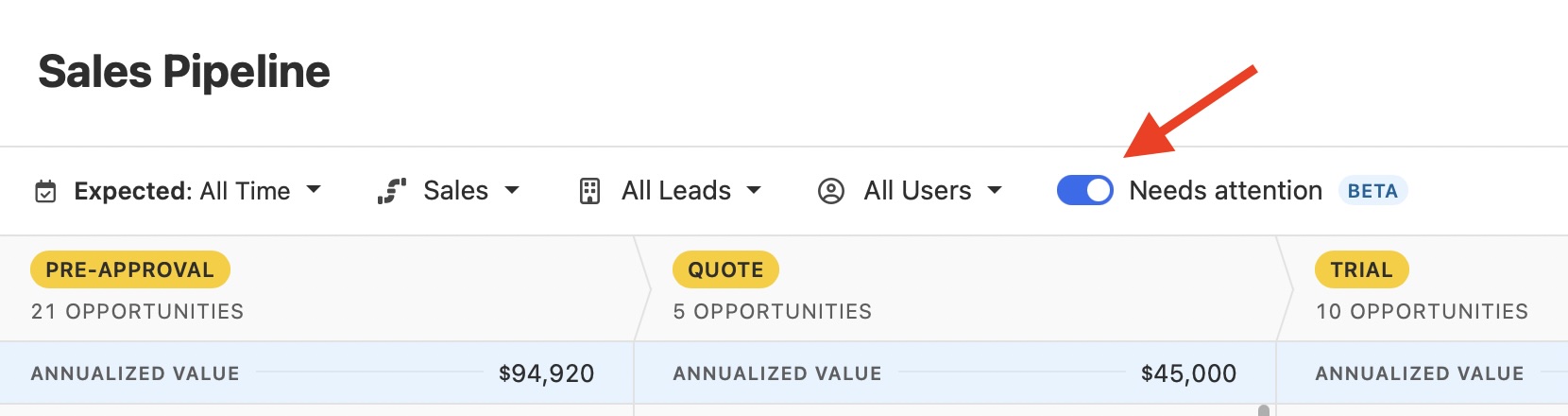
But seeing the flag isn't enough. Here's how to act on these deals automatically.
Step 1: Automate the next action on “Needs Attention” deals so you never miss them
In Close, click Workflows in the left sidebar and create a new Workflow.
Set the trigger to Opportunity event, then add a filter so it only fires when an opportunity hits Needs Attention status.
Then add one of two steps — or both:
-
Task step: Hand it off to a rep — Create a follow-up task assigned directly to the rep, due immediately, so it shows up in their Close Inbox the moment the deal stalls.
-
Email step — Add an Email step and under Send Options, select "Create Draft for Review" instead of "Send Automatically." This sends a pre-written template draft email in the lead owner’s Close Inbox for them to review and send with one click. This way, the email doesn't go out automatically — there’s still a human in the loop.
The Email Draft option is the most automation I’d recommend here. The rep opens their Inbox, sees a template draft waiting on a stalled deal, customizes it to make it sound personal, and sends.
But if you want to add more of a personalized touch and context to the email, move to step two.
Step 2: Use this AI prompt to draft a customized email
A stalled deal doesn't need a masterpiece — it needs a nudge that sounds human and personalized to your prospect.
Use this prompt to generate that email template:
I have a deal that's gone quiet. Here's what I know: [prospect name], [company], [what we were discussing], [last touchpoint and when]. Write me a 4-sentence follow-up email that acknowledges the silence without being passive-aggressive, re-states the value in one line, and ends with a single low-friction CTA (not "let me know your thoughts").
Paste it into ChatGPT or Claude, tweak it to make it sound like you, and drop it into your email draft in Close.
That’s it.
In less than 90 seconds, you can go from seeing the “Needs Attention” deal hit your Close Inbox to an email draft that’s been reviewed, personalized, and sent.
⚡️Get Dialed-In
Create a new Workflow in Close and call it “Needs Attention Nudges.” Teach your team how to respond to the tasks and track this Workflow’s success rate over the next few weeks.
P.S. Want to learn how to use Close like a Power User? Join our webinar tomorrow, March 31st at 12:00PM EDT. Our product managers will teach you how to run Playbooks, use Outcomes, book meetings, and get pipeline insights in Close. Click here to reserve your spot.